Buffer
Email that fits the rest of your day.
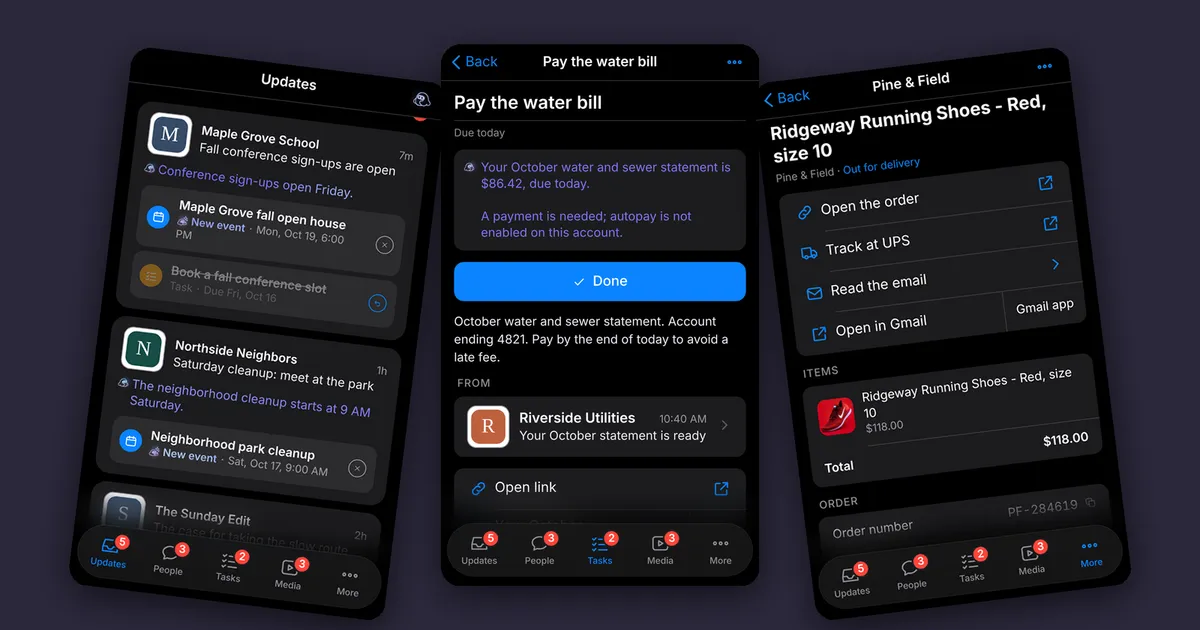
Buffer is Fisher’s daily email app. It gives conversations, obligations, deliveries, and things to read their own places, while keeping the email behind each one close at hand. It runs privately on his phone. This is a tour of the app he uses, with a fictional inbox created for the demonstrations.
Start with Updates
Updates is Buffer’s main page and the first stop when Fisher opens the app. It replaces checking the inbox and keeping track of unread email. New mail waits here until he’s ready to deal with it, without disappearing just because he opened a message.
Each update gives him enough context to choose what to do. Some are FYIs to acknowledge; others suggest a task, an event, or something worth reading later. He can read the original, change a suggestion, reject one part, or leave the whole thing for another time. An edited suggestion stays proposed until he approves it.
Acknowledging is the decision that he’s dealt with the update. The useful pieces then have their own places: a task to finish, a conversation to keep moving, a delivery to follow, or a newsletter to read when there’s time. Those places grow out of Updates; they aren’t separate inboxes to keep checking for the same email.
That distinction matters when a newsletter contains several events. Keeping one shouldn’t mean accepting all the others. Buffer lets Fisher work through the useful pieces individually, then acknowledge the message when he’s satisfied. A swipe handles the straightforward ones; FYIs can be acknowledged together. Both have Undo.
Guided walkthrough · sound off
Start with what arrived
Select any step to explore at your own pace.
Recording details
- Start on Updates: 2026-10-15 · 0c19f328
- Look before approving: 2026-10-14 · 0c19f328
- Change the suggestion: 2026-10-14 · 0c19f328
- Keep one, reject another: 2026-10-14 · 0c19f328
- Approve with a swipe: 2026-10-14 · 0c19f328
- Change your mind: 2026-10-14 · 0c19f328
From an email to done
A bill arrives by email. A few days later, when there’s time to deal with it, the task is already waiting with the payment link attached. Open the link, pick up the sign-in code, finish the payment, return, tap Done. That’s the sort of ordinary errand Buffer is built around.
A bill needs an action, a due date, and the link that gets you there. Buffer brings those pieces together in a task, with the original message still a tap away.
Sign-in codes have a different rhythm. They matter right now, for a few seconds, so they get a fast path and a place of their own. Once the errand is finished, Done clears the task and archives its email. Undo is there if the tap was premature.
The payment website in this demonstration is illustrative. Buffer organizes the task and surfaces the code; the payment itself happens with the provider.
Guided walkthrough · sound off
One errand, start to finish
Select any step to explore at your own pace.
Recording details
- Find what needs doing: 2026-10-14 · 0c19f328
- Follow the useful link: 2026-10-14 · 0c19f328
- Pick up the sign-in code: 2026-10-14 · 0c19f328
- Finish on the provider’s site: 2026-10-14 · 0c19f328
- Return and finish: 2026-10-14 · 0c19f328
People stay people
A conversation has a different kind of unfinished business from a payment reminder. People keeps the back-and-forth together, calls out a reply owed, and remembers a promise made in an earlier message. “I’ll send the photos Thursday” belongs with that exchange. It doesn’t need to become another task somewhere else.
Search and filters make it possible to find the person, see what’s waiting on Fisher, or bring back a conversation that’s gone quiet. Replies themselves open in Gmail.
Guided walkthrough · sound off
The conversation carries the context
Select any step to explore at your own pace.
Recording details
- See whose turn it is: 2026-10-15 · 0c19f328
- Read the whole exchange: 2026-10-15 · 0c19f328
- Find what's waiting on you: 2026-10-15 · 0c19f328
Know what’s coming
An order confirmation, a shipping notice, and an out-for-delivery email describe one purchase. Packages gathers them around what was ordered: the items, their pictures, the delivery estimate, and the tracking history. The carrier link is right there when more detail is needed.
The list is ordered by how close each delivery is to the door. Arriving today comes first, then anything delayed, then what is moving with a tracking number, then the orders still waiting to ship, then what has already arrived. Separating those last two active groups is the point: an order that was placed and has gone quiet is a different thing from a parcel on a truck, and a list that files them together under “on the way” is a list you stop trusting.
The badge counts news about deliveries, rather than every order still in flight. Looking at an update clears that news. A package can stay on the way without asking for attention again every time the app opens, and a swipe clears one that arrived without ever saying so.
Guided walkthrough · sound off
Several emails, one delivery
Select any step to explore at your own pace.
Recording details
- See what's arriving: 2026-11-05 · 74de6d32
- Open the order: 2026-11-05 · 74de6d32
- Follow its progress: 2026-11-05 · 74de6d32
Keep the interesting part
A newsletter can be worth reading without being an obligation. Media gives it somewhere to wait, alongside articles, videos, and other links. The title and summary are enough to decide whether now is a good time; the email itself is still available inside the app.
Favorite something worth returning to, snooze it until there’s time, or archive it when it’s no longer on the reading pile. The archive remains searchable. Saving a piece shouldn’t turn it into homework.
Guided walkthrough · sound off
Worth reading, when there's time
Select any step to explore at your own pace.
Recording details
- Browse the reading pile: 2026-10-15 · 0c19f328
- Stay with the newsletter: 2026-10-15 · 0c19f328
- Keep it within reach: 2026-10-15 · 0c19f328
Change the decision in context
Sometimes the useful action is a correction: keep these newsletters, ignore that kind of notice, or change how an item was understood. Every task, update, delivery, and saved article ends with a way to open a conversation about that one thing. The item comes with it and stays at the top of the exchange, so Fisher never has to describe what he’s looking at, and the answer stays attached to the thing it’s about rather than scrolling away in one general chat.
Blip, the small clay character, marks suggestions and actions involving AI. Ordinary mail and controls keep their own visual language. The distinction makes it easier to see what’s a fact from an email, what’s a suggestion, and where a tap asks for help.
Guided walkthrough · sound off
A correction beside the thing itself
Select any step to explore at your own pace.
Recording details
- Open the relevant task: 2026-11-05 · 74de6d32
- Say what should change: 2026-11-05 · 74de6d32
- Keep the answer with the task: 2026-11-05 · 74de6d32
Worth interrupting for
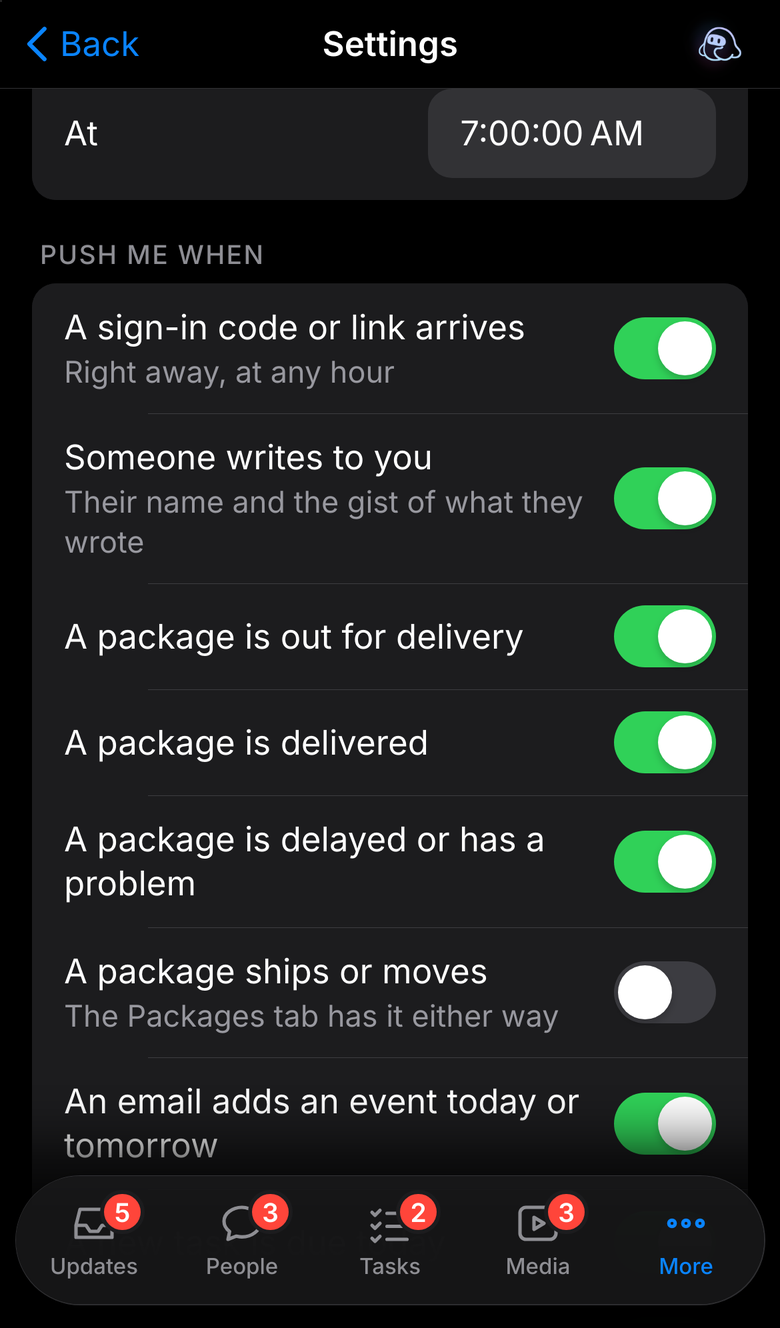
The other half of fitting a day is knowing when not to. A sign-in code or a sign-in link arrives on its own, right away, at any hour, because that is the one kind of mail that is worthless a minute later. Everything else is collected for a few minutes and arrives as one notification per kind, and anything that lands in the evening waits until morning.
What earns a notification is a list Fisher keeps: a delivery out for the day, a reply from a person, an event that just landed on today or tomorrow, a task that just became due. Shipping movement is off, because the Packages tab has it either way. A morning summary says what is waiting before the day starts. Tapping a notification opens the thing it was about, not the front page.
Put the day in reach
The tab bar is arranged around what Fisher reaches for. People, Tasks, Media, Packages, and Calendar can move into or out of that bar; the rest remain available under More. Search, filters, and the same hold-for-actions pattern carry across the lists.
That consistency is part of the work. A swipe completes an action with Undo. Going back brings the list into view immediately. Secondary actions stay close without filling every row with buttons. The app has a lot to do, but each visit can stay small.
Guided walkthrough · sound off
Arrange it around your day
Select any step to explore at your own pace.
Recording details
- Move between kinds of work: 2026-11-05 · 74de6d32
- Reach the rest: 2026-11-05 · 74de6d32
- See the week ahead: 2026-11-05 · 74de6d32
- Choose what stays in reach: 2026-11-05 · 74de6d32
The details came from using it
Buffer grew through daily use: a newsletter lost among FYIs became Media; shipping messages became Packages; a promise stayed with its conversation. The task-and-code workflow is based on an errand Fisher actually finished in the app.
He also kept returning to the less conspicuous details: a list that flickered after a swipe, a bulk action missing Undo, a Back navigation that left a blank screen, a label that wasn’t centered. Those corrections help the app feel dependable when it’s part of the day.
snapshotreflects nottingham-cloud@74de6d32captured Nov 5, 2026